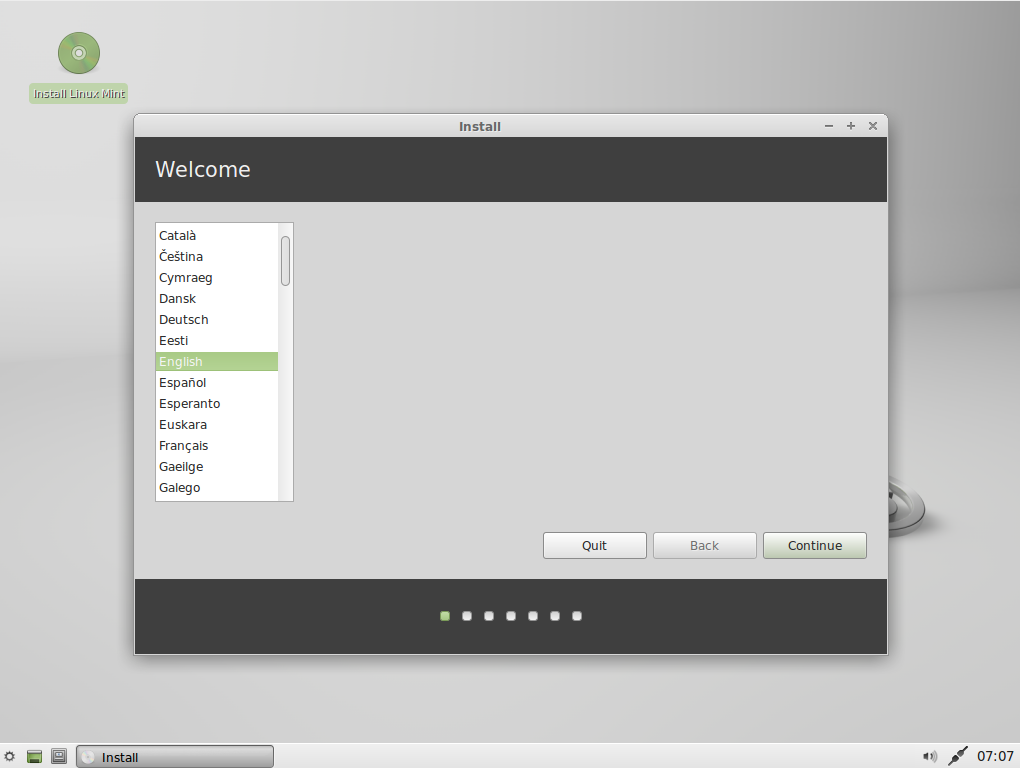
Choosing a right linux distribution is depend on your taste, requirements, and availability of internet connection. Here I am summarizing the idea of a best linux distribution suited for you.
For Desktop users with latest hardware:
1. Fedora: Many will not be agree with me in this choice. I choose fedora because it provides you latest software and latest version of kernel. You need to do a little hard-work after installing Fedora, but afterwards it works very fine. The other reason is its games spin. You will get a plenty of games. Moreover Fedora is up-to-date with latest hardware. To install proprietary drivers you need to do a little work but in fedora you will get best replacement drivers for those proprietary drivers.
2. Mageia: This is an awesome distribution with a nice way to manage all your drivers and softwares. It has a lot of features and support for printing and scanning out of the box. It realeases a new version after a long time of testing.
3. Ubuntu: This is most used linux distribution out there. It has nice integration of software center and terminal apt-get. The best thing about it a very large user community and a lot of forums to help you out with your problems.
For Desktops with old hardwares:
1. Fedora LXDE: Again here is Fedora because it provides best support for old hardware. Instead of GNOME use LXDE desktop environment for installation.
2. Puppy Linux: It is another good way to use you old PC. It is extremely lightweight and run like butter with your old PC.
3. LUbuntu: It is Ubuntu based Linux distro but uses LXDE desktop environment instead of Unity.
For No or slow Network connectivity:
1. LMDE: It is Linux Mint Debian Edition. This edition comes all the media codec required and very less software updates.
2. Linux Mint: Use it if you have little access to internet. This also come with all the media codecs out of the box, so no need to install media codecs and flash-plugin after installation.
3. Debian: Use debian which comes with media codecs out of the box. Hence your PC is ready to use after installing Debian
For Laptop Users:
1. Fedora: Now again many users will not be agree with me in this choice, but believe me this is the best distro for laptop users. It is the best in detecting your mobile broadband connection via 3G or 4G dongle. The dashboard is awesome using GNOME3. Using Fedora there is very less time when you need to touch your touchpad. Press the window button and you will see all your open windows there and then you can type any application name to access that app.
2. Ubuntu: With its nice and elegant look it looks superb with a laptop. Sometimes you may feel frustrated with Unity desktop but you can learn the shortcuts and then it will just fit in your requirements.
3. OpenSuse: This is again one of the best Linux distro for wireless connection management. Very stable and nice one to use with your laptop.
4. Linux Mint: The Cinnamon desktop environment is really excellent and easy to use. It gives you a nice feeling and a lot of desklets. Your laptop will work awesome as it uses Ubuntu software base.
For Desktop users with latest hardware:
1. Fedora: Many will not be agree with me in this choice. I choose fedora because it provides you latest software and latest version of kernel. You need to do a little hard-work after installing Fedora, but afterwards it works very fine. The other reason is its games spin. You will get a plenty of games. Moreover Fedora is up-to-date with latest hardware. To install proprietary drivers you need to do a little work but in fedora you will get best replacement drivers for those proprietary drivers.
2. Mageia: This is an awesome distribution with a nice way to manage all your drivers and softwares. It has a lot of features and support for printing and scanning out of the box. It realeases a new version after a long time of testing.
3. Ubuntu: This is most used linux distribution out there. It has nice integration of software center and terminal apt-get. The best thing about it a very large user community and a lot of forums to help you out with your problems.
For Desktops with old hardwares:
1. Fedora LXDE: Again here is Fedora because it provides best support for old hardware. Instead of GNOME use LXDE desktop environment for installation.
2. Puppy Linux: It is another good way to use you old PC. It is extremely lightweight and run like butter with your old PC.
3. LUbuntu: It is Ubuntu based Linux distro but uses LXDE desktop environment instead of Unity.
For No or slow Network connectivity:
1. LMDE: It is Linux Mint Debian Edition. This edition comes all the media codec required and very less software updates.
2. Linux Mint: Use it if you have little access to internet. This also come with all the media codecs out of the box, so no need to install media codecs and flash-plugin after installation.
3. Debian: Use debian which comes with media codecs out of the box. Hence your PC is ready to use after installing Debian
For Laptop Users:
1. Fedora: Now again many users will not be agree with me in this choice, but believe me this is the best distro for laptop users. It is the best in detecting your mobile broadband connection via 3G or 4G dongle. The dashboard is awesome using GNOME3. Using Fedora there is very less time when you need to touch your touchpad. Press the window button and you will see all your open windows there and then you can type any application name to access that app.
2. Ubuntu: With its nice and elegant look it looks superb with a laptop. Sometimes you may feel frustrated with Unity desktop but you can learn the shortcuts and then it will just fit in your requirements.
3. OpenSuse: This is again one of the best Linux distro for wireless connection management. Very stable and nice one to use with your laptop.
4. Linux Mint: The Cinnamon desktop environment is really excellent and easy to use. It gives you a nice feeling and a lot of desklets. Your laptop will work awesome as it uses Ubuntu software base.